
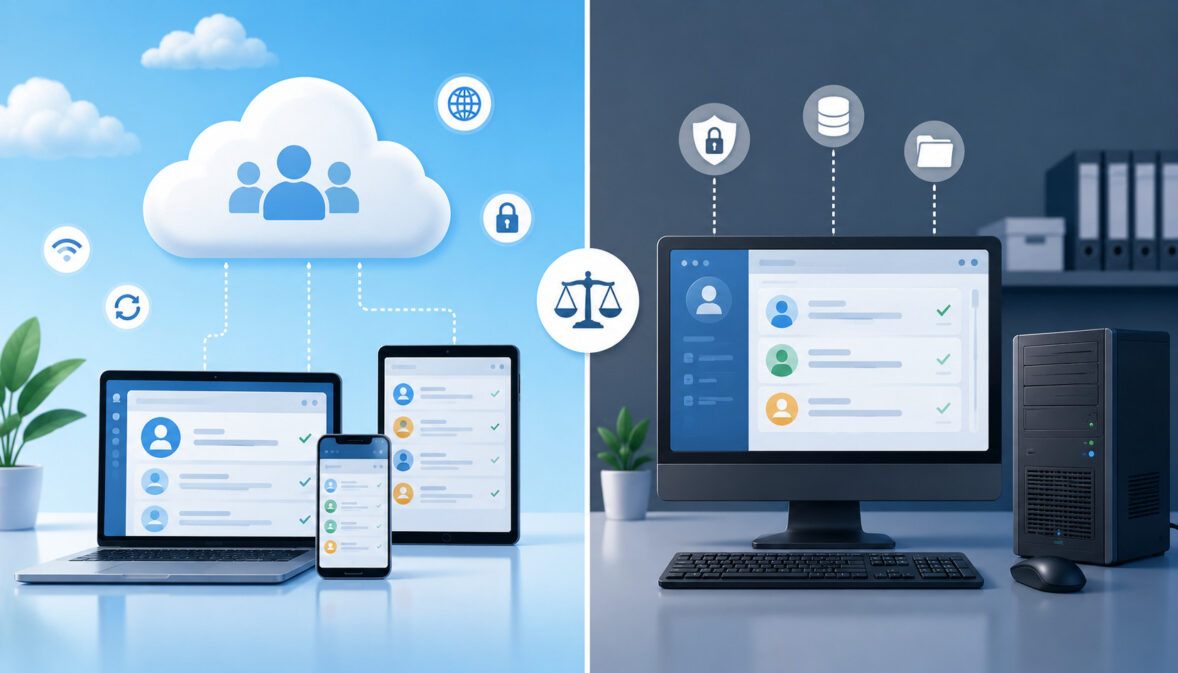
Cloud-Based vs. Desktop Donor Management Systems
Nonprofits, charities, churches, foundations, schools, associations, and community organizations depend on accurate donor information. Every contribution, pledge, campaign response, receipt, and supporter conversation adds another piece to the organization’s fundraising history.
A donor management system brings those details together. It can help fundraising teams record gifts, organize donor profiles, monitor recurring donations, document communication, issue receipts, segment supporters, and prepare reports for leadership.
However, organizations must decide where and how that information will be managed. Some systems operate online through a browser, while others are installed on a computer or local server.
Understanding cloud-based vs desktop donor management systems is therefore an important part of choosing technology that fits daily operations.
A cloud-based donor management system may provide remote access, automatic updates, online integrations, and easier collaboration. A desktop donor management system may offer local access, offline availability, and compatibility with established office workflows. Neither approach is automatically right for every organization.
The better choice depends on staff locations, donor volume, online fundraising activity, reporting expectations, internet reliability, internal IT capacity, data policies, available funding, and future growth.
This guide explains the difference between cloud-based and desktop donor management systems, including access, storage, backups, maintenance, reporting, integrations, security, migration, cost, and long-term operational needs.
What Is a Donor Management System?
A donor management system is software that helps an organization collect, organize, update, and analyze information about its supporters. It acts as a central nonprofit donor database where authorized users can find donor contact details, giving activity, campaign participation, communication history, and related records.
Depending on the product, donor management software may also include online donation forms, pledge tracking, recurring donation management, payment reporting, email tools, event registration, receipt generation, accounting exports, and fundraising dashboards.
Some organizations use a dedicated nonprofit donor management system. Others use broader nonprofit CRM software that also tracks volunteers, members, grant relationships, event attendees, or community partners.
The main purpose is not simply to store names and donation amounts. An organized system helps staff understand each donor’s relationship with the organization. It can show when someone first contributed, which campaigns they supported, whether they give regularly, which communications they received, and which follow-up actions may be appropriate.
What Donor Management Software Helps Track
Donor management software commonly tracks donor names, mailing addresses, email addresses, telephone numbers, household relationships, communication preferences, and relevant notes. Each donor profile may also contain a complete giving history.
Gift records can include:
- Donation date and amount
- Campaign, appeal, fund, or program
- Online or offline donation source
- Payment method
- One-time or recurring gift status
- Pledge amount and payment progress
- Receipt status
- Tribute or memorial information
- Staff notes and stewardship tasks
More advanced donor tracking software may support donor segmentation, campaign reports, retention analysis, recurring gift monitoring, communication schedules, duplicate detection, and accounting exports.
The system should also preserve enough context to help staff communicate responsibly. For example, a donor relations employee may need to know that a supporter attended an event, responded to a particular appeal, requested limited communication, or recently completed a pledge.
Why Donor Records Need Organized Systems
Spreadsheets, paper files, email inboxes, and separate payment reports may work when an organization has only a small number of donors. Problems appear as the database grows and more people begin using the information.
One spreadsheet may contain mailing addresses, while another contains online donations. Receipt information may be stored in an accounting folder, and communication notes may remain in individual staff inboxes. As a result, employees can struggle to determine which record is current.
Scattered donor records may lead to duplicate profiles, inconsistent campaign labels, delayed acknowledgments, missing notes, inaccurate totals, and repeated communication. They also make staff transitions more difficult because important knowledge may leave with the employee or volunteer who maintained the files.
Maintaining consistent household relationships is also important because spouses, families, and other supporters may share addresses while retaining different giving histories. Learning how donor householding supports cleaner donor records can help teams reduce duplicate communication and organize related donor profiles more accurately.
What Is a Cloud-Based Donor Management System?
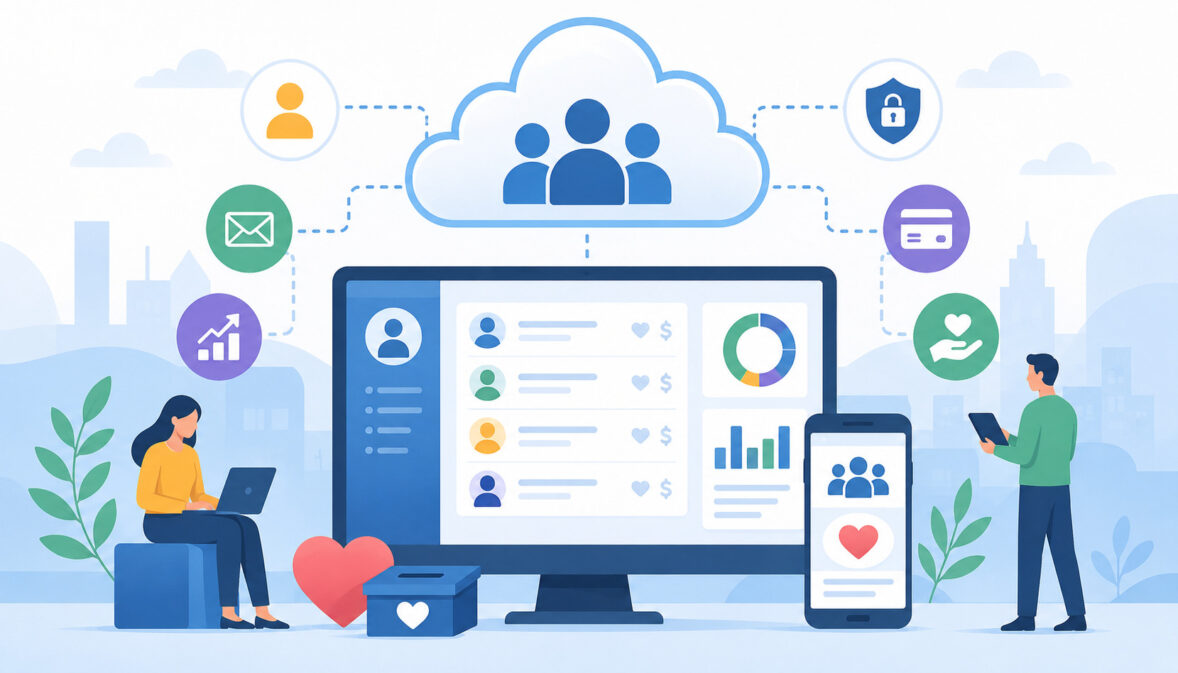
A cloud-based donor management system is software hosted online and accessed through an internet connection. Instead of installing the complete program and database on one office computer, authorized users generally sign in through a browser or connected application.
The software provider typically operates the underlying infrastructure, although the organization remains responsible for managing its own users, permissions, processes, exports, and internal data-handling practices.
A cloud-based donor database may be accessible from office computers, approved home devices, tablets, or other supported equipment. This can be useful for remote employees, traveling leaders, multi-location organizations, fundraising event teams, and volunteers with carefully limited access.
Cloud donor management software often combines the donor database with online donation forms, communication tools, campaign pages, recurring giving, receipt workflows, integrations, and reporting dashboards.
How Cloud Donor Management Software Works
When someone enters or updates a donor record in a cloud system, the information is saved to infrastructure managed through the online platform. Other authorized users can then view the updated record according to their assigned permissions.
For example, a development officer may update a donor note after a meeting. A finance employee may later review the related contribution, while an executive may see the gift reflected in a fundraising dashboard. Because users work with the same online records, they are less likely to create competing file versions.
Many cloud platforms also process information from connected tools. An online donation may automatically create or update a donor profile, record the campaign source, issue a receipt, and appear in a report.
Cloud access does not eliminate administrative responsibility. Organizations must still manage user accounts, review integrations, monitor exports, establish password practices, remove former users, and train staff.
Common Uses for Cloud-Based Donor Databases
A cloud-based donor management system is commonly used when fundraising activity occurs across different channels or locations. Online gifts, recurring donations, event contributions, mailed checks, pledges, and staff-entered donations can often be recorded in one database.
Common uses include:
- Managing online donation forms
- Monitoring campaign performance
- Accessing donor profiles remotely
- Coordinating distributed fundraising teams
- Tracking recurring donations
- Preparing shared board reports
- Sending receipts and acknowledgments
- Segmenting donors for communication
- Integrating email, accounting, and event tools
- Reviewing donation activity during events
An online donor management system may be especially valuable when staff members need current information without being in the same office.
Before selecting one, organizations should confirm browser requirements, mobile support, internet needs, permission controls, export options, integration capabilities, backup practices, and account-recovery procedures.
What Is a Desktop Donor Management System?
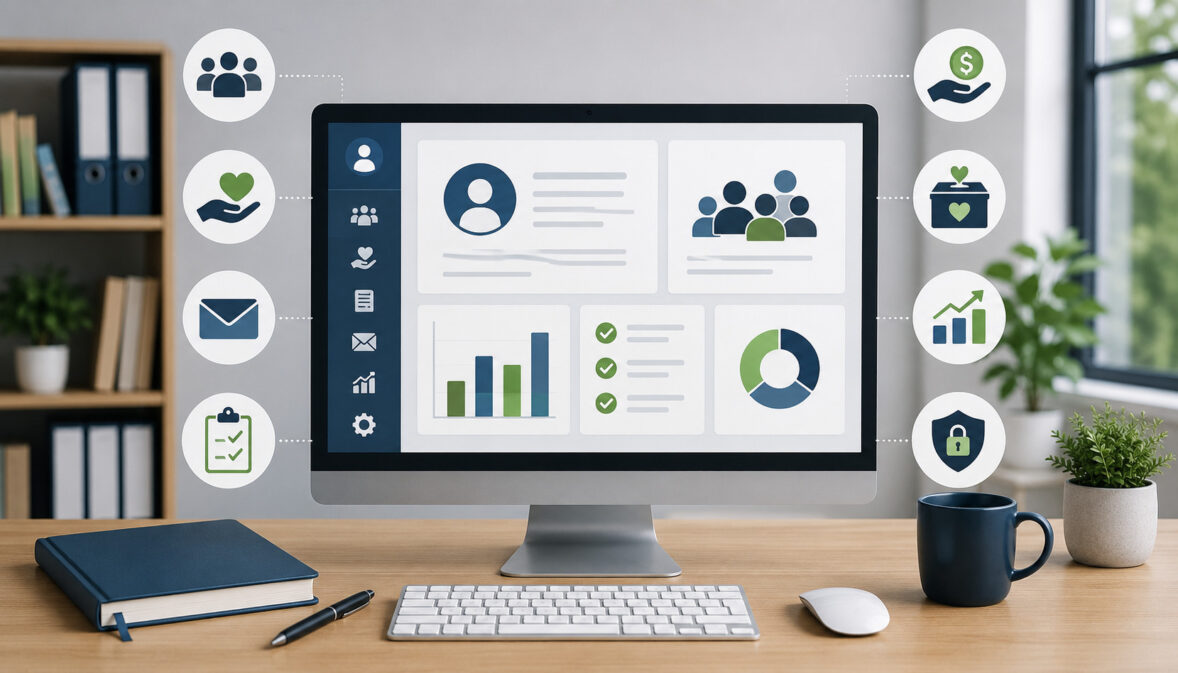
A desktop donor management system is software installed on a specific computer, group of computers, or local server. The application and its donor records may be maintained within the organization’s office environment rather than accessed primarily through a public internet connection.
Some desktop products are designed for a single user. Others support multiple users through a local network or shared server. The exact setup may depend on the software license, database structure, operating system, hardware, and internal IT configuration.
Desktop donor software can be practical for organizations that conduct most administrative work from one location. It may also appeal to teams with established local systems, limited connectivity, specialized legacy requirements, or a preference for locally managed infrastructure.
How Desktop Donor Software Works
Desktop donor software is normally downloaded or installed from physical or digital installation files. Donor information may be stored on the same computer, on a local network drive, or in a database hosted on an organization-controlled server.
Users may open the application without accessing the internet, although internet access could still be required for updates, support, payment processing, email tools, or selected integrations.
The organization may be responsible for:
- Installing software updates
- Maintaining compatible computers
- Protecting the local network
- Creating and testing backups
- Replacing aging hardware
- Managing local user accounts
- Troubleshooting application problems
- Planning disaster recovery
A desktop donor database may therefore provide local control while requiring more direct maintenance. The practical workload depends heavily on whether the organization has qualified IT support.
Common Uses for Desktop Donor Databases
A desktop donor management system may be used by an office-based organization whose fundraising and administrative employees work from a central location. Staff may enter mailed checks, cash gifts, pledges, event donations, membership payments, and donor notes into a locally installed database.
Desktop systems are also found in organizations that have used the same application for many years. Historical reports, custom fields, established mailing processes, and staff familiarity may make the existing system difficult to replace quickly.
Offline donor management software may be useful in areas where internet access is inconsistent. A local application can allow staff to continue entering or reviewing records during a connectivity interruption.
However, local availability does not automatically mean easier administration. The organization still needs reliable backups, secure devices, access controls, tested recovery procedures, current software, and a process for sharing reports.
Cloud-Based vs Desktop Donor Management Systems Compared
The central difference between cloud-based and desktop donor management systems is where the application and data environment are managed and how users reach them. That difference affects almost every part of the organization’s workflow.
The following table provides a practical overview.
| Category | Cloud-Based Donor Management System | Desktop Donor Management System | What Nonprofits Should Consider |
| Access | Online access from approved devices | Usually tied to an installed computer or local network | Where staff and volunteers work |
| Updates | Often managed through the online platform | May require local installation | Available IT capacity |
| Backups | May be managed or automated by the platform | Often managed locally | Recovery procedures and exports |
| Collaboration | Often supports distributed and simultaneous users | May rely on local networking or file coordination | Number and location of users |
| Integrations | Commonly supports online tools and connected workflows | May depend on imports, exports, or selected connectors | Donation, email, and reporting needs |
| Security | Depends on provider controls and organizational practices | Depends on local device, server, and network controls | Access, privacy, and security policies |
| Cost model | Commonly subscription-based, although models vary | May involve licenses, hardware, upgrades, and support | Total long-term cost |
| Offline access | Usually depends on internet availability | May operate locally without constant internet | Connectivity reliability |
| Scalability | Users and features may be easier to expand | Expansion may require hardware or networking changes | Growth expectations |
| Maintenance | Usually involves less local infrastructure work | May require direct technical maintenance | Staff skills and ownership |
How to Use the Comparison Table
The table should be used as a discussion tool rather than a scorecard that automatically declares one system the winner.
Ask representatives from fundraising, finance, operations, leadership, and IT to review each category. Each person may identify different requirements. A fundraising employee may prioritize remote donor access, while a finance employee may focus on exports and reconciliation. IT staff may concentrate on backups, user controls, updates, and recovery.
Teams can add a priority rating to each row. Categories marked essential should receive more attention during product demonstrations, reference checks, testing, and contract review.
The table can also help board members understand that software cost is only one part of the decision. Staff time, hardware, support, migration, training, integrations, downtime, backup management, and reporting effort all affect long-term value.
Why the Best Choice Depends on Workflow
The best donor management system is the one that supports the organization’s actual fundraising process with the least unnecessary complexity.
Consider where gifts originate. An organization receiving substantial online donations may value automatic donation recording and digital receipts. A small office receiving mostly checks may have different priorities.
Also consider who uses the system. Development staff may need detailed donor profiles, finance staff may need accurate transaction exports, volunteers may need limited event access, and executives may need summary dashboards.
The difference between cloud-based and desktop donor management systems becomes meaningful only when it is connected to these daily responsibilities. Software type should support the workflow rather than force staff into a process that does not match how the organization operates.
Key Difference One: Access and Flexibility
Access determines where people can use the donor management system and which devices or networks are required. This can affect gift entry, event operations, donor meetings, remote work, volunteer involvement, and leadership reporting.
Cloud systems are usually designed for online access, while desktop systems are generally tied to installed devices or local networks. Both approaches can work effectively, but they create different operational boundaries.
Cloud Access for Remote Teams
A cloud-based donor database can allow authorized staff to review donor information from different approved locations. Development officers may update records after meetings, remote employees may enter communication notes, and executives may review campaign reports while traveling.
This flexibility can also support event fundraising. Staff may access guest records, record pledges, review donation activity, or answer donor questions without returning to an office computer.
Access should still be limited according to job responsibilities. Volunteers may need only event check-in information, while finance staff may require transaction reports. Role-based access helps prevent every user from seeing or changing every record.
Organizations should also define which devices may be used, how users authenticate, when access should be removed, and how lost or shared devices are handled.
Desktop Access for Office-Based Teams
A desktop donor management system may fit an organization whose fundraising administration is concentrated in one office. Staff members can work from designated computers or through a protected local network.
This arrangement can simplify expectations about where donor records are viewed. Employees may know that gift entry, reporting, and record updates occur only on approved office equipment.
However, access may become difficult when employees work remotely, travel, attend events, or operate from multiple locations. Staff may resort to spreadsheets, emailed files, handwritten notes, or delayed data entry, creating additional reconciliation work.
Before choosing a desktop system, determine whether local access genuinely supports the team or merely reflects an old process. Future staffing and location changes should also be considered.
Key Difference Two: Data Storage and Backups
A donor database contains information the organization may depend on for acknowledgments, campaign reporting, relationship management, and internal financial processes. Storage and backup arrangements therefore require careful evaluation.
Cloud systems generally store data within provider-managed infrastructure. Desktop systems usually store data on local computers, servers, or network drives. Neither arrangement is automatically protected from loss or disruption.
Cloud Backup Considerations
Cloud providers may maintain redundant systems, managed backups, or recovery processes. Organizations should not assume that every platform offers the same protection.
Ask how frequently backups are created, how long they are retained, what recovery options exist, and whether the organization can export its own donor and gift data. Teams should also understand what happens if an account is locked, an integration fails, a record is deleted, or service becomes unavailable.
Regular exports may provide an additional operational safeguard, provided exported files are stored and protected appropriately.
CISA’s educational data backup guidance discusses maintaining multiple copies and using different storage locations. Specific backup strategies should be reviewed with qualified technology and cybersecurity professionals.
Desktop Backup Considerations
Desktop systems frequently place more backup responsibility on the organization. A database stored on one computer may be lost because of hardware failure, theft, malware, accidental deletion, physical damage, or an unsuccessful upgrade.
A dependable process may include scheduled backups to approved storage, protected offsite copies, retention rules, and periodic restoration tests. Simply connecting an external drive is not enough if nobody confirms that the database is being copied correctly.
The organization should assign ownership. Someone must know when backups run, where they are stored, who can access them, and how records would be restored.
Backup needs vary by infrastructure and risk. Professional review is appropriate when developing recovery, retention, privacy, cybersecurity, and incident-response procedures.
Key Difference Three: Software Updates and Maintenance
Software requires ongoing attention. Updates may correct defects, improve compatibility, add features, change interfaces, or address security issues.
Cloud-based platforms and desktop applications handle this work differently. The difference affects IT workload, employee training, downtime, and system reliability.
Cloud Software Updates
Cloud software is often updated centrally. Users may see new features or interface changes the next time they sign in without installing anything on individual computers.
This can reduce the burden of managing versions across multiple devices. It can also help ensure that users work in a consistent environment.
However, centrally managed updates have tradeoffs. Staff may need to adapt to changes they did not schedule. Integrations, reports, or established procedures may behave differently after a release.
Organizations should review update notices, maintain internal documentation, test important workflows when practical, and provide brief training when significant changes appear. They should also ask how the provider communicates planned maintenance and service interruptions.
Desktop Software Updates
Desktop donor software may require employees or IT personnel to download and install updates. In a multi-user environment, every workstation may need a compatible version.
Updates can be delayed because of limited IT capacity, concerns about disruption, or incompatibility with an older operating system. Over time, the application may become harder to support.
Before installing an update, teams may need to back up the database, verify system requirements, coordinate staff downtime, and test critical reports or exports.
Desktop systems can remain dependable when maintenance is properly managed. The key question is whether the organization has the technical resources and documented responsibility to manage that work consistently.
Key Difference Four: Collaboration and Multi-User Access
Fundraising information is rarely used by one person. Development, finance, leadership, communications, event staff, volunteers, and administrators may all need some level of access.
A system should help those users work from consistent records while restricting sensitive or unnecessary information.
Multi-User Collaboration in Cloud Systems
Cloud donor management software commonly supports multiple user accounts. Authorized employees may work with the same donor records at the same time from different locations.
A development officer can add a donor note, finance staff can review a transaction, and a communications employee can prepare a segment without copying the entire database. Updates may become available to other users quickly.
Role-based access is important. Users should receive only the permissions required for their responsibilities. For example, a volunteer might view an event roster without seeing complete giving histories or financial exports.
Cloud collaboration works best when organizations establish record-entry standards. Shared access does not prevent inconsistent data unless everyone follows the same naming, tagging, note-taking, and duplicate-management practices.
Collaboration Limits in Desktop Systems
Desktop donor software can support collaboration, but the experience depends on the installation. A server-based system may allow several office users, while a single-computer product may permit access to only one person at a time.
Some teams exchange exported files or make copies of the database. This creates a risk that employees will update different versions. Staff may then struggle to identify which copy contains the latest gift, address, or communication note.
Local network access can reduce these problems, but it may require server configuration, licensing, permissions, and IT support. Remote access may need additional technology and security controls.
Teams considering desktop donor software should test simultaneous use and ask exactly how record locking, remote access, synchronization, and user permissions work.
Key Difference Five: Integrations With Fundraising Tools
A donor management system rarely operates alone. Donation forms, payment processing, email communication, event registration, accounting software, campaign pages, and reporting tools may all exchange information with it.
The quality of those connections affects data entry, reconciliation, reporting, and donor communication.
Cloud Donor Management Integrations
Cloud donor management software often provides direct integrations, APIs, webhooks, or built-in online fundraising tools.
When an online donation is completed, the system may automatically record the gift, identify the campaign, update the donor profile, trigger a receipt, and include the transaction in a dashboard. This can reduce duplicate entry and shorten the time between a gift and an acknowledgment.
Integrations should still be evaluated carefully. Teams should ask which fields transfer, how duplicate donors are handled, whether refunds or failed recurring gifts sync correctly, and how errors are reported.
Integrations are most useful when they preserve information about where each contribution originated. A consistent approach to fundraising source tracking can help teams connect email, text, social media, event, and online donation activity with the correct donor and campaign records.
Desktop Donor Software Integrations
Desktop donor software may support integrations, but some workflows rely on CSV imports, spreadsheet exports, locally installed connectors, or manual entry.
For example, staff may download online donation activity and import it into the donor database. They may then export totals for accounting and create a separate mailing file for communications.
These processes can work, but they require consistency. Column formats, campaign codes, donor matching rules, and import procedures must be understood. A poorly prepared import may create duplicate donors or assign gifts incorrectly.
Ask vendors to demonstrate the exact integration or import workflow rather than accepting a general statement that the software “works with” another tool.
Key Difference Six: Reporting and Dashboards
Donor reporting software helps teams understand how fundraising activities are performing. Reports may cover total contributions, donor retention, campaign results, recurring gifts, pledges, fund designations, receipt status, and giving trends.
When comparing reporting features, teams should also determine whether the system can identify supporters whose giving has stopped. This guide to LYBUNT and SYBUNT reports explains how donor reporting can help organizations recognize lapsed supporters and plan more focused retention outreach.
Cloud Reporting Dashboards
Cloud systems may display current fundraising activity through online dashboards. Authorized leaders can review campaign progress, recurring donation totals, donor segments, or recent contributions without waiting for someone to email a file.
Shared dashboards can reduce repeated report preparation, although leaders still need help interpreting definitions and limitations. A dashboard should not be treated as accurate until gift coding, campaign attribution, refunds, offline donations, and duplicate records are managed correctly.
Teams should test whether reports can be filtered, saved, exported, scheduled, and compared across periods. They should also verify whether totals include both online and manually entered gifts.
Desktop Reporting Workflows
Desktop donor management systems may offer extensive reporting, especially when the organization has configured the software over many years.
The main challenge can be distribution. A report generated on an office computer may need to be exported as a spreadsheet or PDF and sent to executives, finance staff, or board members.
That extra step can be useful when reports require review before distribution. However, it may also create outdated copies or repeated work.
Organizations should assess who prepares reports, how often reports are requested, which filters are required, and whether recipients need live access or only approved summaries.
Key Difference Seven: Security and Privacy Controls
Donor information may include contact details, giving activity, communication history, payment-related records, and personal notes. Protecting that information requires more than selecting cloud or desktop software.
Security depends on technology, configuration, staff behavior, account management, physical safeguards, backups, and documented procedures.
Cloud Security Considerations
When evaluating a cloud system, review authentication options, user permissions, access logs, encryption information, account recovery, data exports, provider documentation, and procedures for removing users.
Staff accounts should not be shared. Permissions should reflect job responsibilities, and former employees or volunteers should lose access promptly.
Organizations processing card payments should also understand which systems handle payment data and how responsibilities are divided. The PCI Security Standards Council provides general information about payment-security standards, but an organization should seek qualified guidance for its specific payment environment.
CISA recommends foundational cyber-hygiene measures such as strong passwords, software updates, careful handling of suspicious links, and multifactor authentication.
Desktop Security Considerations
A locally stored database must be protected at the computer, network, server, backup, and physical levels.
An organization may need to consider device passwords, user accounts, operating system updates, malware protection, network controls, encrypted storage, locked offices, secure disposal, and restrictions on removable drives.
Local control can be valuable, but it also means the organization may carry more direct responsibility. A stolen laptop, failed server, exposed backup, or unpatched system can affect donor records.
Security practices should be reviewed by qualified professionals. This article provides general educational information and is not a substitute for privacy, cybersecurity, legal, payment-security, or compliance advice.
Key Difference Eight: Cost and Long-Term Budgeting
Software cost includes more than the advertised subscription or license. A meaningful comparison should consider setup, migration, training, support, hardware, updates, integrations, staff time, backups, and system administration.
A lower initial price may not produce a lower total cost.
Cloud Cost Considerations
Cloud systems often use monthly or annual subscription pricing, although free, usage-based, transaction-based, and other models also exist.
A subscription may include hosting, updates, technical support, online access, and selected features. Additional costs may apply for extra users, donor records, communication volume, integrations, premium support, data migration, or payment processing.
For example, one system might cost $150 per month but require little local maintenance. Another might cost $75 per month but require paid integrations and substantial staff work. The listed price does not reveal the complete operational cost.
Organizations should request a written explanation of pricing triggers and estimate expenses under expected growth.
Desktop Cost Considerations
A desktop system may involve an initial license, recurring maintenance, upgrade charges, local hardware, server costs, backup tools, IT assistance, and replacement equipment.
A $2,000 license may appear less expensive than a subscription, but the organization should consider several years of updates, support, hardware, troubleshooting, and staff time.
Legacy desktop systems can also create indirect costs when staff rely on manual imports, duplicate entry, or repeated report preparation.
Compare costs over a realistic planning period. Include migration, training, downtime, integration work, and the internal time required to manage the system.
Key Difference Nine: Internet Dependence and Offline Access
Internet availability can determine whether staff can reach records, process donations, review event information, or prepare reports.
Cloud systems generally require connectivity. Desktop systems may remain available locally during an internet interruption, although connected functions can still be affected.
Cloud Systems and Internet Access
A cloud-based donor management system usually needs a stable internet connection. Before adopting one, consider the reliability of the office connection and the locations where employees will work.
Fundraising events may take place in buildings with congested Wi-Fi. Field teams may operate in areas with weak mobile coverage. Staff should know which tasks become unavailable when connectivity is lost.
Organizations may prepare temporary procedures for offline gift notes, pledge collection, donor lookups, and later entry. Any temporary files or paper records should be handled carefully and transferred promptly.
Internet dependence should be viewed as an operational planning issue rather than an automatic disadvantage.
Desktop Systems and Local Access
Desktop donor software may allow staff to continue using the locally installed application when internet service is unavailable. This can be helpful in low-connectivity offices.
However, internet-independent database access does not mean every function will work. Email delivery, online donations, payment processing, remote access, software activation, cloud backups, and external integrations may still require connectivity.
Local access may also limit staff outside the office. The organization may need a secure remote-access arrangement or a delayed process for entering information collected elsewhere.
Teams should map which activities truly require offline operation before making connectivity the deciding factor.
Key Difference Ten: Scalability and Growth
Scalability describes how well a system accommodates more donors, users, campaigns, locations, transactions, reports, and integrations.
Growth does not always mean becoming a large organization. A small nonprofit may suddenly add online giving, launch recurring donations, expand events, or involve more volunteers.
Scaling Cloud-Based Donor Management Systems
Cloud systems may make it easier to add user accounts, storage, features, integrations, or locations without installing software on every computer.
A growing organization might begin with a small development team and later add finance users, regional staff, event coordinators, or limited-access volunteers. Cloud access can make those changes more manageable.
However, growth may affect pricing, administration, data quality, and training. More users require stronger permission management. More donations require better duplicate control and reconciliation.
Ask what limits apply to contacts, transactions, users, emails, file storage, reports, API activity, or campaigns. Scalability should be confirmed rather than assumed.
Scaling Desktop Donor Management Systems
A desktop system may scale successfully within a well-managed local environment, but expansion can require additional licenses, computers, networking, server capacity, backups, and IT support.
Opening another office or adding remote staff may create further requirements. The organization must decide how users will reach the same database and how performance, synchronization, and security will be maintained.
Long-established desktop databases may also accumulate custom fields and historical processes that become difficult to manage as fundraising changes.
Desktop scalability is therefore not only about database size. It includes the ability to expand access and workflows without creating disconnected files or excessive technical complexity.
When a Cloud-Based Donor Management System May Be a Better Fit

A cloud system may be a strong option when fundraising activity is distributed, online giving is important, staff need remote access, or leadership expects current reports.
It may also help organizations that prefer not to maintain servers or install updates across multiple computers.
Growing Online Fundraising Programs
Online fundraising involves more than placing a donation form on a website. Gifts must be associated with donor profiles, campaigns, designations, recurring schedules, receipts, payment reports, and communication workflows.
A cloud-based donor database may connect these steps. When a donor contributes online, the transaction may appear in the database and relevant reports without a separate import.
This can support campaign tracking, recurring gift monitoring, donor segmentation, and prompt acknowledgments. It may also reduce mismatches between payment reports and fundraising records.
Organizations should still test refunds, failed payments, duplicate donors, anonymous gifts, designated funds, and offline gift entry before relying on automation.
Teams Working From Multiple Locations
Cloud access can help when employees, volunteers, executives, or board leaders work from different locations.
A development director can review a donor profile before a meeting, an event employee can update attendance, and a finance team member can review gift reports without receiving separate database copies.
The system should support different permission levels so that access remains appropriate. A multi-location team also needs consistent rules for campaign names, donor notes, gift entry, and record updates.
Cloud technology makes shared access possible, but good collaboration still depends on training and governance.
When a Desktop Donor Management System May Be a Better Fit
Desktop donor software may remain appropriate for organizations with centralized operations, reliable local IT support, limited internet access, or specialized legacy workflows.
Choosing desktop software is not necessarily outdated. The question is whether local installation supports current and future needs.
Local Office-Based Workflows
A small organization may have one or two employees who enter donations, prepare acknowledgments, and produce reports from the same office.
If remote access is unnecessary and fundraising activity is relatively simple, a desktop donor database may provide the needed functionality without introducing an online workflow.
The organization should still consider staff absences and transitions. More than one authorized person should understand the system, backup routine, reporting process, and recovery procedure.
It should also evaluate whether future online donations, remote work, new locations, or leadership reporting expectations could change the fit.
Offline or Low-Connectivity Environments
A desktop system may be practical when internet service is unreliable and employees must regularly work with donor records during outages.
Local availability can support gift entry, address updates, reporting, and selected administrative tasks without continuous connectivity.
However, offline operation increases the importance of local backups, device protection, hardware maintenance, and disaster recovery. It may also complicate online donation imports or remote collaboration.
Connectivity should be weighed alongside every other requirement rather than considered alone.
Data Migration Between Desktop and Cloud Systems
Migration is the process of moving donor records from one system to another. It may include donor profiles, gift history, pledges, campaign codes, notes, receipts, communication preferences, households, attachments, and custom fields.
Migration is often more complicated than exporting one file and importing it elsewhere.
Preparing Donor Data for Migration
Start by identifying which information should move. Some historical data may be important for donor relationships and reporting, while other fields may be outdated, duplicated, or no longer useful.
Review:
- Duplicate donor profiles
- Incomplete contact details
- Inconsistent campaign labels
- Outdated gift categories
- Unfulfilled or closed pledges
- Household relationships
- Communication preferences
- Custom fields
- Receipt records
- Anonymous donations
- Restricted notes
- Archived campaigns
Receipt history should receive special attention during migration because teams may need to locate, correct, or reissue earlier acknowledgments. Reviewing a documented donation receipt correction and reissue process can help organizations identify which receipt fields, versions, and communication records should remain accessible after migration.
Testing Migrated Data
Do not assume a successful import means the migration is complete.
Select sample donors representing different situations, such as a recurring giver, household, pledge donor, event participant, major donor, anonymous donor, and supporter with several campaign gifts.
Verify that donation dates, amounts, campaigns, designations, notes, receipt status, and communication preferences appear correctly. Run summary reports and compare them with trusted totals from the previous system.
Testing should also cover duplicate matching, recurring donation status, report filters, exports, user permissions, and acknowledgments.
Cloud Donor Management Software vs Desktop Donor Software for Reporting
Reporting requirements deserve separate evaluation because the database is useful only when teams can turn its information into understandable results.
Both system types may provide strong reports, but access, timeliness, sharing, and configuration can differ.
Reports Nonprofits Should Compare
During product evaluation, ask each system to produce the same set of reports using representative data.
Useful examples include:
- Donation summaries by period
- Campaign performance
- Fund or program totals
- New donor counts
- Donor retention
- Recurring donation activity
- Pledge status
- Online and offline donation totals
- Receipt status
- Lapsed donor segments
- Giving by donor level
- Accounting exports
Review how each report defines its metrics. A donor retention report, for example, may produce different results depending on the periods, exclusions, and donor types included.
Also test whether reports can be filtered, saved, exported, scheduled, or reproduced consistently.
Sharing Reports With Stakeholders
Cloud reporting dashboards may let authorized leaders access current information directly. Desktop workflows may rely more heavily on exported spreadsheets, PDFs, or prepared summaries.
Neither method is always better. Live access can improve visibility, while approved static reports can preserve context and reduce misinterpretation.
Consider what each audience needs. Finance teams may require transaction-level exports. Board members may need summarized campaign and retention information. Development staff may need actionable donor lists.
A useful donor reporting software workflow should produce the right level of detail without forcing staff to rebuild the same report repeatedly.
Common Mistakes When Comparing Cloud and Desktop Systems
Organizations often focus on visible features while overlooking the operational work surrounding the software.
Avoiding the following mistakes can lead to a more sustainable decision.
Ignoring Real Staff Workflows
A product demonstration may look efficient because the presenter follows an ideal sequence. Daily work is often more complicated.
Map who receives checks, imports online donations, assigns campaigns, corrects donor addresses, sends receipts, updates pledges, reviews payment reports, creates board summaries, and handles returned mail.
Ask users to test those tasks. A system that works well for leadership but slows gift entry may not be a good fit. A system that development staff enjoy but finance cannot reconcile may also create problems.
Selection should involve the people who use the records, not only the people approving the purchase.
Forgetting Long-Term Maintenance
Organizations sometimes evaluate the first month and overlook the next several years.
Cloud systems require user administration, subscription review, integration monitoring, training, and data governance. Desktop systems may require hardware replacement, upgrades, local backups, technical support, and compatibility management.
Document who will own the system after implementation. That person or team should oversee permissions, data quality, support requests, documentation, training, and vendor communication.
A system without clear ownership can become disorganized regardless of where it is hosted.
Cloud-Based vs Desktop Donor Management Systems Checklist
Use this checklist to compare products, prepare demonstrations, and organize internal discussions.
| Checklist Area | Cloud-Based System Review | Desktop System Review | Priority |
| Access | Remote and multi-user access | Local or network access | High |
| Backups | Managed backup and export options | Local backup and recovery routine | High |
| Security | Roles, authentication, provider controls | Device, server, and network protection | High |
| Updates | Online update process | Manual update requirements | Medium/High |
| Integrations | Online donations, email, events, accounting | Imports, exports, and local connections | High |
| Reports | Dashboards, saved reports, and exports | Local reports and sharing process | High |
| Cost | Subscription, setup, usage, and support | License, hardware, IT, and upgrades | High |
| Migration | Import assistance and field mapping | Export and local transfer requirements | High |
| Training | Online onboarding and support | Local training and documentation | Medium/High |
| Scalability | Additional users, records, and features | Local expansion and networking | Medium/High |
How to Use the Checklist
Assign each row to an internal owner. Fundraising might assess donor workflows and campaign reports, finance might evaluate exports and reconciliation, and IT might review access, backups, maintenance, and recovery.
During demonstrations, ask vendors to perform tasks using sample scenarios. Do not rely only on presentation slides.
Record whether each requirement is fully supported, partially supported, unsupported, or dependent on additional tools. Also document the expected cost and staff effort.
After demonstrations, compare findings as a group. This prevents one impressive feature from overshadowing important limitations.
Records to Review Before Choosing a System
Examine the information the new system must support before making a decision.
Review donor lists, gift history, campaign codes, fund designations, pledges, receipts, online donation reports, payment records, communication preferences, households, notes, tasks, accounting exports, and existing user roles.
Determine how much historical information is useful and which records require cleanup. Also identify documents or data that should not be moved without professional review.
This preparation helps vendors demonstrate realistic workflows and provide more accurate migration estimates.
Best Practices for Choosing Between Cloud and Desktop Donor Systems
A structured selection process reduces the risk of choosing software based on price, appearance, or a single feature.
Use the following practices:
- Begin with donor management workflows.
- Identify every user and required access level.
- Review remote work and volunteer needs.
- Compare backup, export, and recovery options.
- Evaluate role-based permissions.
- Test donation, campaign, pledge, and retention reports.
- Review online donation integrations.
- Confirm accounting export requirements.
- Plan data cleanup before migration.
- Compare total long-term cost.
- Involve fundraising, finance, operations, and IT.
- Review training and support.
- Consider future donor and user growth.
- Avoid choosing only by price.
- Seek professional guidance for specific legal, tax, accounting, privacy, cybersecurity, charitable registration, or compliance matters.
Creating a Practical Evaluation Process
Begin with a requirements document divided into essential, preferred, and optional capabilities.
Invite shortlisted providers to demonstrate the same workflows. Use sample donor records and transactions when possible. Ask staff to score usability, accuracy, reporting, access, migration, and support.
Next, document implementation responsibilities. Identify who will clean data, configure fields, test reports, train staff, update procedures, and communicate changes.
Finally, conduct reference checks and review written terms, data export provisions, support expectations, security documentation, and pricing conditions with appropriate professionals.
Choosing for Long-Term Donor Stewardship
The purpose of donor database software is to support relationships, not merely store transactions.
A suitable system should help staff maintain accurate donor profiles, acknowledge contributions, respect communication preferences, understand giving history, schedule follow-up, and measure fundraising performance.
Consider whether the software helps employees answer practical questions: When did this person last give? Which campaign did they support? Have they received a receipt? Who last contacted them? What follow-up is due?
Technology that makes those answers easier can support more thoughtful donor stewardship.
How to Choose the Right Donor Management System
The final decision should balance immediate needs with realistic growth. Focus on access, donor volume, online fundraising, reporting, security controls, integrations, budget, IT capacity, training, and long-term ownership.
A sophisticated platform is not necessarily the best option if staff cannot use it consistently. A simple system is not necessarily economical if it creates extensive manual work.
Questions to Ask Before Choosing
Ask the following questions during evaluation:
- Where can authorized users access the system?
- Does it support simultaneous users?
- Which role-based permissions are available?
- How are donor profiles and giving histories organized?
- How are recurring gifts and pledges tracked?
- Can online and offline donations be combined?
- How are receipts created and reissued?
- Which campaign and retention reports are available?
- Can reports be saved and exported?
- How are backups created and tested?
- Can the organization export its complete data?
- Which integrations are supported?
- How are integration errors reported?
- What is required for migration?
- What training and support are included?
- How are software updates handled?
- What happens during an internet outage?
- What is the total expected cost?
- How easily can users, records, and locations be added?
- Who will own administration after launch?
Comparing Workflow Fit Over Software Type
The phrase cloud donor management software vs desktop donor software can make the decision sound like a simple technology contest. In practice, workflow fit matters more than the label.
A well-managed desktop system may serve a centralized office effectively. A poorly configured cloud system may create confusion despite modern features. Conversely, a cloud platform may significantly reduce manual work for an organization with distributed staff and active online fundraising.
Choose the approach that supports accurate records, usable reports, appropriate access, reliable backups, responsible data handling, manageable maintenance, and clear staff ownership.
Frequently Asked Questions
What is the difference between cloud-based and desktop donor management systems?
A cloud system is generally accessed online and hosted through provider-managed infrastructure. A desktop system is generally installed on a local computer or server.
Cloud systems may offer easier remote access, collaboration, automatic updates, and online integrations. Desktop systems may provide local access, offline operation, and greater direct involvement in infrastructure management.
The better choice depends on workflow, connectivity, IT capacity, reporting, integrations, budget, and growth.
What is a cloud-based donor management system?
It is donor management software accessed through the internet, usually with a browser or connected application.
It can help organizations manage donor profiles, giving history, campaigns, recurring gifts, pledges, receipts, communication, and reports from approved devices.
Features, pricing, data handling, backup arrangements, and security controls vary, so each platform should be reviewed individually.
What is a desktop donor management system?
It is donor software installed on a computer or local server.
Records may be stored within the organization’s local environment, and staff may be responsible for installation, backups, updates, hardware, and technical maintenance.
Some desktop applications support multiple network users, while others are designed for one workstation.
Is cloud donor management software better than desktop donor software?
Not in every situation.
Cloud software may work better for remote teams, online fundraising, multi-location access, and connected reporting. Desktop software may fit centralized offices, low-connectivity environments, or established local workflows.
The best option is the one that meets the organization’s operational requirements without creating unnecessary risk or administrative burden.
Can nonprofits move from desktop donor software to a cloud-based donor database?
Yes. The process normally involves exporting donor and gift data, cleaning records, mapping fields, importing information, and testing the new database.
Organizations should verify donor profiles, gift totals, campaigns, pledges, receipts, notes, custom fields, and communication preferences before completing the transition.
A staged migration and sample-data test can reduce disruption.
Which system is better for remote fundraising teams?
A cloud-based system is usually more practical because authorized users can access current records from different approved locations.
However, the organization should evaluate authentication, permissions, device practices, internet reliability, account removal, and security documentation.
Remote access should be controlled rather than universally available.
What should nonprofits review before choosing donor management software?
Review access needs, donor volume, gift sources, online donation activity, recurring gifts, pledges, reporting, integrations, accounting exports, backups, security controls, migration, training, support, cost, and growth plans.
It is also important to involve the employees who enter gifts, issue receipts, communicate with donors, reconcile payments, and prepare reports.
How do cloud and desktop donor systems affect reporting and backups?
Cloud systems may provide shared dashboards and managed backup processes, while desktop systems may rely on local report exports and organization-managed backups.
Exact capabilities vary. Organizations should ask how reports are generated, how complete data can be exported, how backups are retained, and how information would be restored.
Backup, privacy, accounting, cybersecurity, and compliance procedures should be reviewed with qualified professionals.
Conclusion
Comparing cloud-based vs desktop donor management systems requires more than deciding whether staff prefer a browser or an installed application.
Cloud systems may offer remote access, easier collaboration, managed updates, online integrations, shared dashboards, and flexible growth. Desktop systems may provide local availability, offline workflows, compatibility with established processes, and greater direct control over local infrastructure.
Each approach also creates responsibilities. Cloud users must manage accounts, permissions, integrations, exports, and provider relationships. Desktop users must manage devices, networks, updates, backups, hardware, and recovery.
The right decision should reflect staff locations, donor volume, online and offline donations, reporting needs, internet reliability, IT resources, security expectations, integrations, training capacity, total cost, and future plans.
Most importantly, the chosen donor management system should help the organization maintain accurate donor records, protect sensitive information, manage gifts consistently, send acknowledgments, understand fundraising results, and communicate thoughtfully with supporters.
When technology supports those responsibilities without unnecessary complexity, it becomes more than a database. It becomes a dependable foundation for efficient operations and long-term donor relationships.